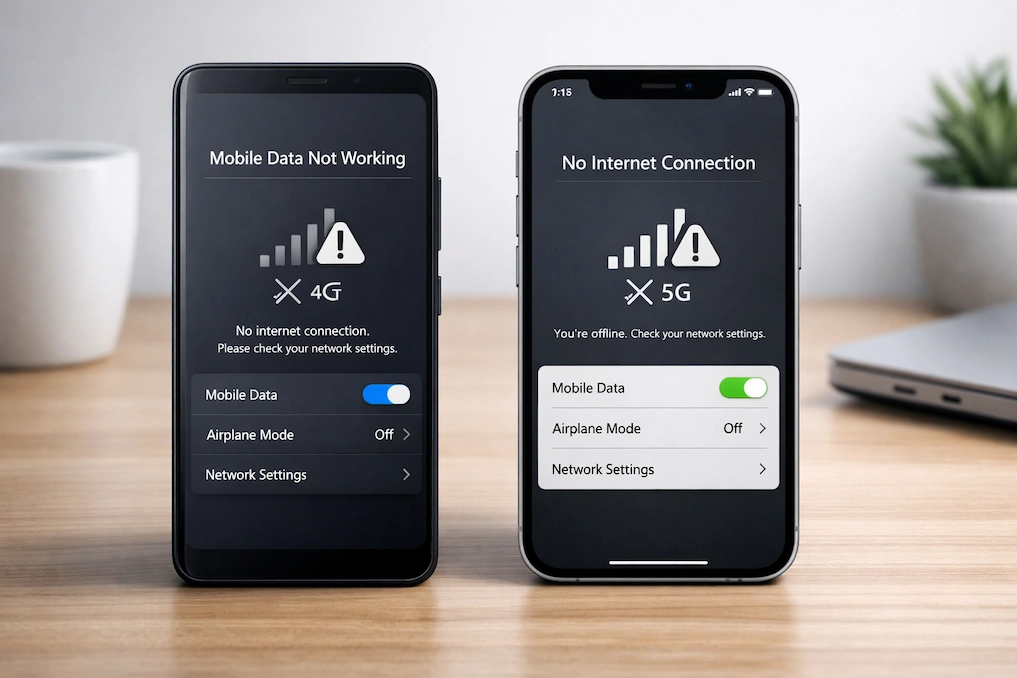
Mobile data not working can disrupt navigation, online payments, messaging, and everyday communication. This guide explains how to fix mobile data not working in a step-by-step process, using the troubleshooting methods recommended by smartphone manufacturers and mobile network operators.
The steps are arranged from basic quick checks to advanced configuration fixes, helping you identify the cause without unnecessary resets or service center visits
Also read: If your phone’s memory is completely full, it can cause unexpected network issues. For smoother performance, learn how to free up storage space easily.
1. Basic Quick Checks (Start Here)
Start with these quick checks. They often resolve temporary network or software-related issues
Toggle Airplane Mode to Fix Mobile Data Not Working
Turning Airplane Mode on and off resets all wireless radios on your phone. This forces the device to disconnect from the mobile network and register again, which can restore stalled data connections.
Use this when:
- Mobile data suddenly stops working
- Signal is visible, but the internet does not load
Use this if:
- Mobile data stopped suddenly
- Signal shows, but pages do not load
How to do it:
- Open Quick Settings (swipe down from the top).
- Turn Airplane Mode ON.
- Wait 20–30 seconds.
- Turn Airplane Mode OFF.
- Check if mobile data starts working.
Restart Your Device
Use this if:
- Mobile data stopped suddenly
- Signal shows, but pages do not load
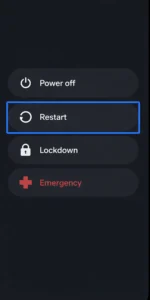
Restarting clears temporary system processes related to the modem and network stack. Both Android and iPhone troubleshooting guides recommend restarting as an initial step for connectivity issues.
This helps when:
- Data problems appear after updates
- The phone has been running continuously for a long time
How to do it:
- Press and hold the Power button.
- Tap Restart (or Power off → turn on manually).
- Wait until the phone fully boots.
- Enable Mobile Data and test internet access.
Check Data Limits if Mobile Data Is Not Working
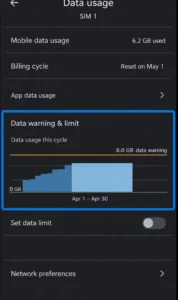
Phones allow users to set mobile data usage limits. If a limit is reached, mobile data may stop automatically.
What to check:
- Data usage warnings
- Manually set cut-off limits
Remove or adjust the limit if it was enabled unintentionally.
How to do it (Android):
- Go to Settings → Network & Internet → Mobile Network → Data usage.
- Check for Data warning or Data limit.
- Disable the limit or increase the threshold.
- Turn mobile data OFF → ON.
Disable Wi-Fi
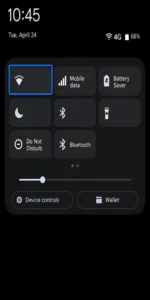
When Wi-Fi is enabled, phones prioritize it over mobile data. A weak or unstable Wi-Fi connection can make it seem like mobile data isn’t working.
To test properly:
- Turn off Wi-Fi
- Check mobile data again
How to do it:
- Turn Wi-Fi OFF from Quick Settings.
- Ensure Mobile Data is ON.
- Open a website or app to test connectivity.
Official Android mobile data troubleshooting guide
2. Check Network Mode & SIM Settings
Incorrect SIM handling or network mode selection can prevent mobile data from connecting properly.
Re-insert the SIM Card to Fix Mobile Data Not Working
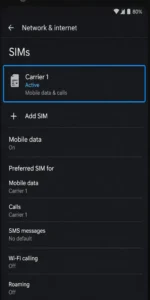
Removing and reinserting the SIM card refreshes the physical connection and network authentication.
Helpful if:
- Data works intermittently
- The network disappears after restarting
How to do it safely:
- Power OFF the phone.
- Remove the SIM tray using the ejector tool.
- Reinsert the SIM firmly and correctly.
- Power the phone ON.
- Check network and mobile data.
3. Check Network Mode
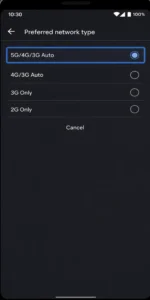
If a phone is locked to an unsupported or legacy network mode, mobile data may fail to work.
Recommended setting:
- Automatic selection (5G / 4G / 3G)
Avoid forcing the phone to stay on older network types unless required by your carrier.
How to do it:
- Go to Settings → Mobile Network → Preferred network type.
- Select 5G/4G/3G (Auto).
- Restart the phone.
- Test mobile data.
4. Enable Data Roaming
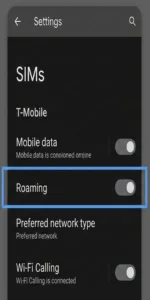
Some carriers require data roaming to be enabled even within the same country or region.
Important notes:
- Enabling roaming does not always mean extra charges
- Charges depend on your mobile plan
Enable roaming temporarily to test whether data starts working.
How to do it:
- Go to Settings → Mobile Network.
- Enable Data Roaming.
- Restart mobile data and test.
5. Verify APN Settings to Fix Mobile Data Not Working (Critical Step)
APN (Access Point Name) settings control how your phone connects to your carrier’s data network.
Reset APN Settings
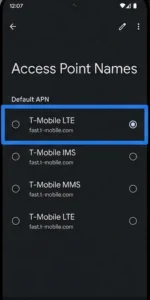
Incorrect or modified APN settings can block mobile internet access even when the signal strength is strong.
Recommended action:
- Reset APN settings to default
- Use only APN values provided by your carrier
Avoid copying APN values from unofficial sources.
How to do it:
- Go to Settings → Mobile Network → Access Point Names (APN).
- Tap Reset to default.
- Restart the phone.
- Test mobile data.
Reset Network Settings
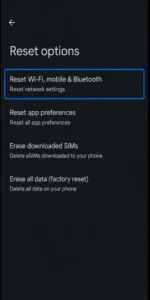
Resetting network settings restores:
- Default APN profiles
- Wi-Fi and Bluetooth configurations
- Carrier network settings
This does not delete personal data such as photos or apps, but it will remove saved Wi-Fi networks.
How to do it:
- Go to Settings → System → Reset options.
- Tap Reset Network Settings.
- Confirm reset.
- Restart the phone.
Re-enable mobile data
6. Disable Data & Battery Restrictions to fix mobile data not working
Power-saving and data-saving features can limit or block mobile data.
Disable Battery Saving Restrictions
Battery saver modes may restrict background data or turn off mobile internet entirely to conserve power.
For testing:
- Turn off battery saver
- Check if mobile data resumes
How to do it:
- Turn Battery Saver OFF.
- Go to App battery settings.
- Set affected apps to Unrestricted.
- Test mobile data.
Turn Off Data Saver & Low Data Mode
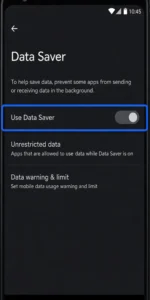
Data Saver (Android) and Low Data Mode (iPhone) reduce background data usage.
These features may cause:
- Apps not syncing
- Websites failing to load properly
Temporarily turn them off to confirm whether they are causing the issue.
How to do it:
- Open Settings → Network/Data usage.
- Disable Data Saver / Low Data Mode.
- Restart mobile data.
- Test apps and websites.
Enable Background Data for Specific Apps
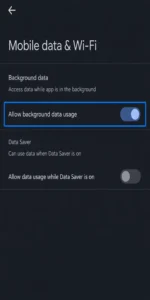
Apps require permission to use mobile data in the background.
Check:
- App-level mobile data access
- Background data restrictions for affected apps
How to do it:
- Open Settings → Apps → Select app.
- Go to Mobile data & Wi-Fi.
- Enable Background data.
- Reopen the app.
Developer Option: Keep Mobile Data Always Active (Advanced)
Android includes a developer option that keeps mobile data active even when Wi-Fi is connected.
This can help users who:
- Switch frequently between Wi-Fi and mobile data
- Experience delays when Wi-Fi disconnects
Enable this only if you are familiar with developer settings.
How to do it (Advanced):
- Enable Developer Options.
- Go to Developer Options → Networking.
- Turn ON Keep mobile data always active.
- Restart the phone.
7. Disable VPN, Private DNS & iCloud Private Relay
Encrypted routing services can interfere with mobile network connectivity.
Disable VPN (Android & iPhone)

VPNs may affect carrier routing, DNS resolution, or data authentication.
To test:
- Turn off the VPN
- Check whether mobile data starts working
How to do it:
- Open your VPN app.
- Disconnect or turn it OFF.
- Test mobile data.
- Re-enable VPN only after confirming.
Turn Off Private DNS (Android)
Custom DNS servers may not respond correctly over cellular networks.
Recommended step:
- Set Private DNS to automatic
- Retest mobile data
How to do it (Android):
- Go to Settings → Network → Private DNS.
- Select Automatic.
- Restart mobile data.
- Test connectivity.
Disable iCloud Private Relay (iPhone)
Some mobile networks do not fully support iCloud Private Relay. Temporarily disabling it can help identify compatibility issues with mobile data.
How to do it (iPhone):
- Go to Settings → Apple ID → iCloud.
- Tap Private Relay.
- Turn it OFF temporarily.
- Test mobile data.
8. Check the SIM Card Condition to fix the mobile data not working
Physical SIM problems can cause unstable or failed mobile data connections.
Identify Physical Damage
SIM cards that are bent, cracked, or worn may fail to maintain a stable network connection.
How to check:
- Remove the SIM.
- Inspect for bends, cracks, or worn contacts.
- Replace SIM if damaged
Replace the SIM if visible damage is present.
Clean the Contacts and Tray
Dust or debris on the SIM card or tray can interrupt proper contact.
Safe method:
- Remove the SIM
- Gently clean with a dry, lint-free cloth
How to do it:
- Remove the SIM.
- Clean gently with a dry, lint-free cloth.
- Reinsert securely.
- Restart the phone.
Verify Placement and Compatibility
Ensure that:
- The correct SIM size is used
- The SIM is properly seated in the tray
- Your device supports the SIM type
How to check:
- Confirm correct SIM size (Nano-SIM).
- Ensure SIM sits flat in the tray.
- Verify your phone supports the carrier’s network bands.
Check SIM Status in Software
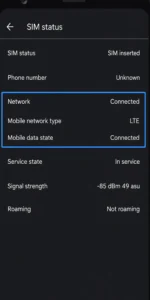
System settings show whether the SIM is:
- Detected by the phone
- Registered on the network
- Allowed to use mobile data
If the SIM shows “No service” or “Not registered,” contact your carrier.
How to do it:
- Go to Settings → About phone → SIM status.
- Check:
- Network registered
- Mobile data allowed
- If “No service” appears, contact the carrier.
Final Notes
Mobile data problems usually come from settings conflicts, data usage limits, SIM issues, or temporary network conditions rather than hardware faults. Most smartphones and mobile networks are designed to recover once these common causes are checked and corrected.
Working through the steps in this guide helps narrow down the issue logically, starting with simple settings and moving toward more advanced checks. If mobile data still does not work after completing all steps, the safest next option is to contact your mobile network provider or an authorized service center for further assistance.
Frequently Asked Questions (FAQs)
This is usually due to exhausting your daily data quota, a temporary network glitch that needs an Airplane Mode toggle, or incorrect APN settings.
The primary reasons are account issues (such as expired plans), incorrect phone settings, or physical issues, such as a poorly seated SIM card.
Ensure your network mode under settings is set to the highest “Auto” option (LTE/5G) instead of just 3G, and try re-inserting your SIM card.
Since the router is working for others, the issue is isolated to your phone. Try restarting it or “forgetting” the network and reconnecting.