Proven maintenance steps that keep Android phones and iPhones fast and stable
A slow phone wastes time and patience. Apps lag, scrolling stutters, batteries drain faster, and basic actions feel delayed. That does not automatically mean your phone is old or dying.
In most cases, poor performance comes from fixable software and usage problems: overloaded storage, background apps, outdated software, and accumulated system clutter. Hardware failure is the exception, not the rule.
This guide breaks down exact, step-by-step actions to restore smooth performance on Android phones and iPhones safely, without junk “booster” apps or unnecessary factory resets.
Why Phones Slow Down Over Time
Smartphones multitask nonstop. Over months or years, performance drops due to predictable causes:
- Background apps consuming RAM and CPU
- Internal storage filling up
- Outdated operating systems or apps
- Declining battery efficiency
- Cached and temporary system files piling up
Slowdowns happen gradually, which is why users often tolerate them until performance becomes unacceptable.
Signs Your Phone Performance Is Getting Worse
If two or more of these apply, optimization is overdue:
- Apps take longer to open
- Scrolling feels choppy
- Phone heats up during light use
- Battery drains faster than before
- Apps reload instead of resuming
- Random freezes or delayed touch response
Restart Your Phone Regularly
Why Restarting Improves Performance
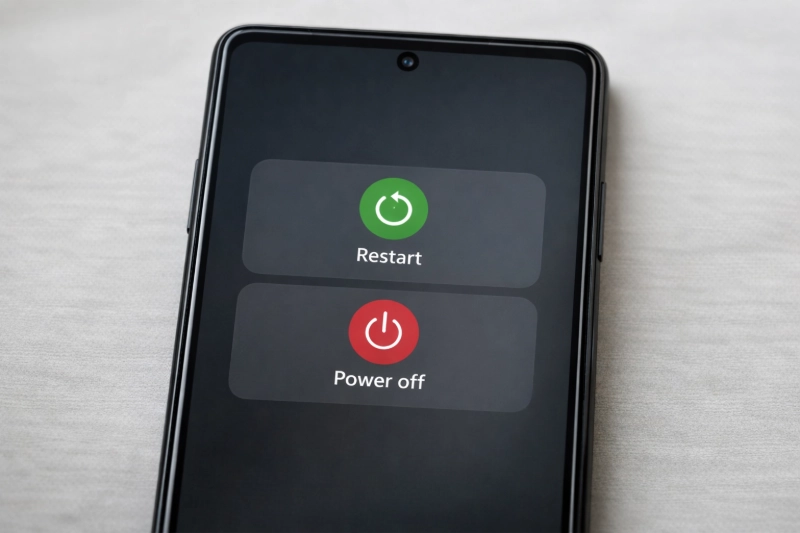
Restarting clears RAM, stops stuck background processes, and resets system services. Some apps fail to release memory properly, causing lag and instability. A restart wipes that slate clean.
How Often You Should Restart Your Phone
- Light users: every 5–7 days
- Heavy users: every 2–3 days
Restary Frequency-Android vs iPhone
Both platforms benefit equally. Restarting is routine maintenance, not a last resort fix.
Keep Your Phone Software Updated
How OS Updates Improve Performance
Updates deliver bug fixes, memory optimizations, battery management improvements, and security patches. Skipping them means living with known performance issues.
When Updates Cause Temporary Slowdowns
After major updates, phones may index files or re-optimize apps. Short-term slowdown is normal and usually resolves within 24–48 hours.
Best Practices Before Updating
- Keep 20%+ storage free
- Update apps after the OS update
- Restart once the update completes
Manage Storage Space Effectively
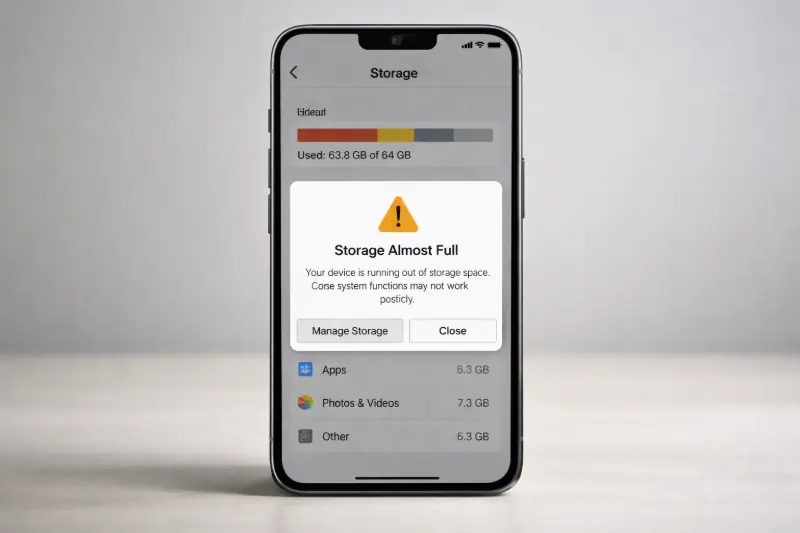
How Low Storage Hurts Performance
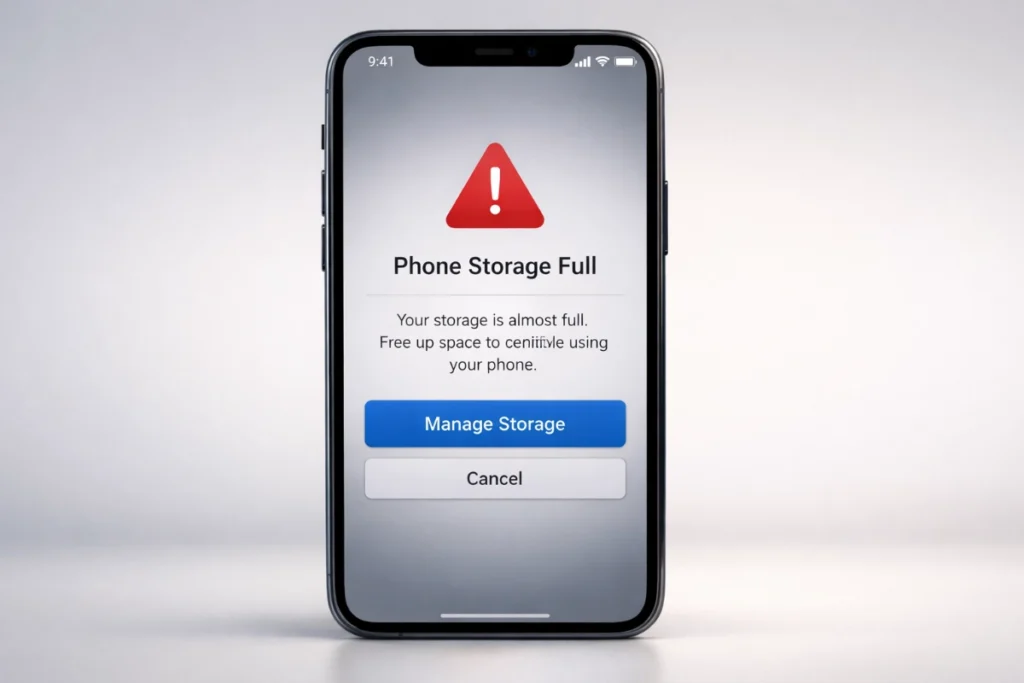
Phones rely on free storage for caching, background processing, and system tasks. When storage is nearly full, read/write speeds drop and multitasking breaks.
Ideal Free Storage
Maintain 20–25% free internal storage at all times. Below this threshold, slowdown is inevitable.
Internal vs Cloud Storage
Move photos, videos, and backups to cloud or external storage. Internal storage should stay lean and functional.
Update Apps and Remove Unused Ones
Why Outdated Apps Slow Things Down
Apps are optimized for current OS behavior. Older versions run inefficiently and may conflict with system processes.
Why Unused Apps Still Hurt Performance
Even unused apps may:
- Sync data
- Send notifications
- Run background services
What to Remove
Uninstall apps unused for 30 days, especially social media, shopping, and utility apps.
Close or Troubleshoot Misbehaving Apps
When Closing Apps Helps
Most apps suspend correctly, but some freeze or loop in the background. Closing those immediately restores responsiveness.
Identify Problem Apps
Watch for apps that:
- Cause heating during idle use
- Drain battery abnormally
- Lag the system when opened
Fix Strategy
- One-time issue: close or restart app
- Repeated issue: update or uninstall
Android-Specific Performance Optimization
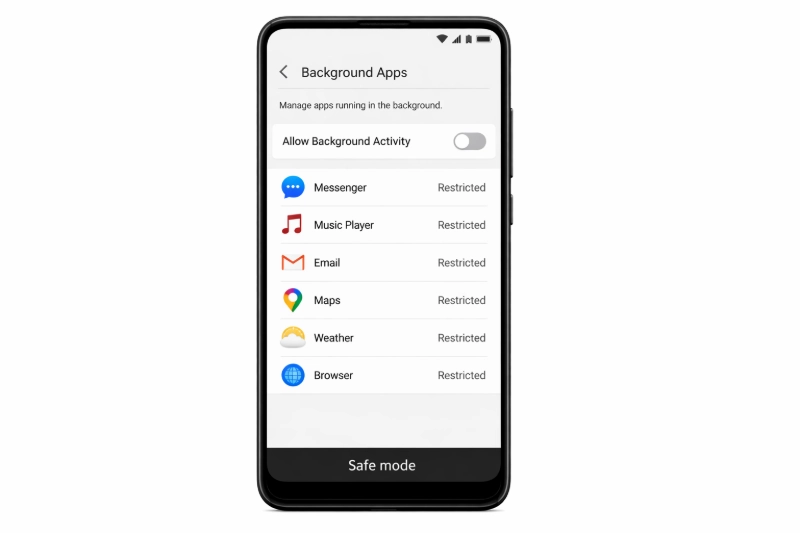
Use Safe Mode to Find Bad Apps
Safe Mode disables all third-party apps. If performance improves, one installed app is the culprit.
When to Uninstall or Disable Apps
Remove apps installed shortly before slowdown or apps you rarely use.
Limit Background Activity
- Restrict background activity for social and media apps
- Disable unnecessary permissions such as constant location access
Result: lower CPU usage, less heat, smoother performance.
iPhone-Specific Performance Optimization
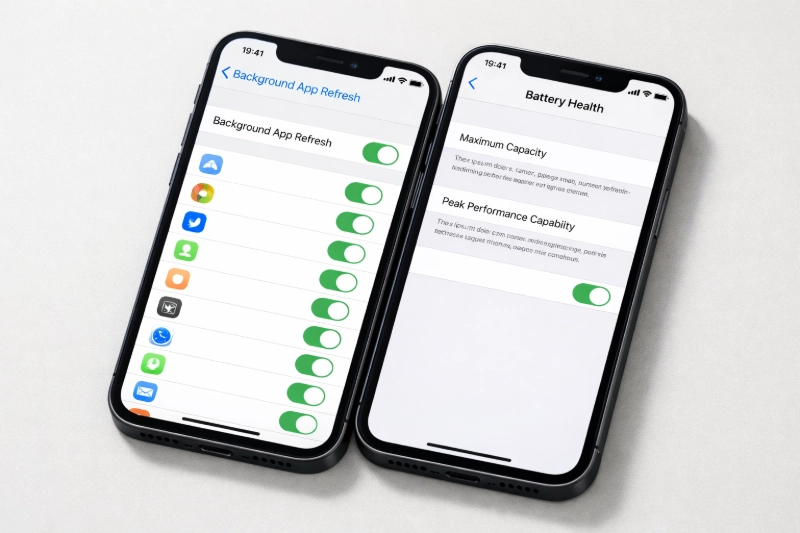
Manage Background App Refresh
Disable background refresh for non-essential apps. Most don’t need it running constantly.
Check Battery Health & Throttling
Below roughly 80% battery health, iOS reduces peak performance to prevent shutdowns. This feels like lag, not a software bug.
Optimize Storage on iPhone
Large “System Data” usually means cached files and leftovers slowing the system.
Offload Unused Apps
Offloading removes the app but keeps its data intact, freeing storage without losing information.
When Factory Reset Is the Only Option
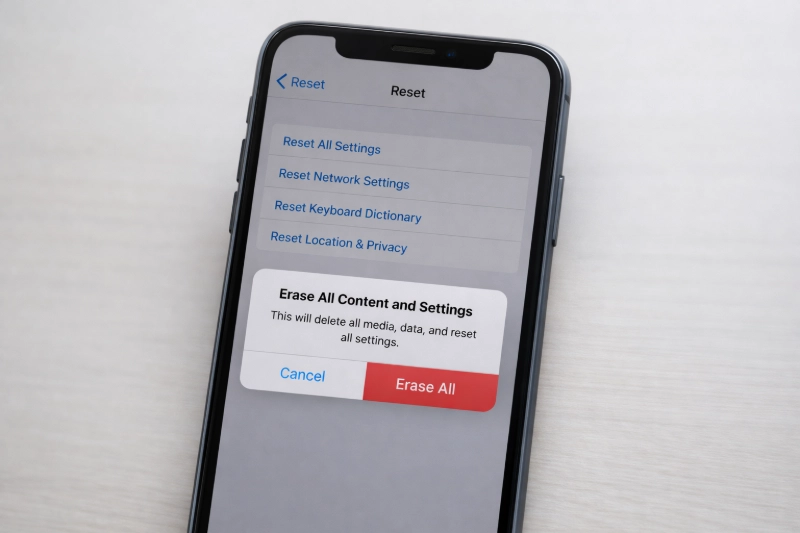
How a Factory Reset Helps
It removes years of clutter, corrupted files, and broken settings, rebuilding the system clean.
When It Will NOT Help
- Battery health is poor
- Hardware is damaged
- Storage fills up again immediately
What Actually Fixes What
- Factory reset: software problems
- Battery replacement: throttling and power issues
- New phone: hardware limitations
Quick Performance Checklist
- Restart weekly
- Keep 20–25% storage free
- Update OS and apps
- Remove unused apps
- Limit background activity
- Avoid RAM boosters or cleaner apps
Common Mistakes That Hurt Performance
- Using RAM or booster apps
- Ignoring system updates
- Keeping storage nearly full
- Never restarting the phone
- Installing apps from unknown sources
How to Maintain Performance Long-Term
Performance depends on maintenance, not miracles.
- Monthly app cleanup
- Regular restarts
- Controlled storage usage
- Timely updates
Conclusion
Improving phone performance does not require new hardware or risky apps. With consistent maintenance, Android phones and iPhones can stay fast, stable, and responsive for years.Most performance problems are software-related and fixable. Treat your phone like a system, not a disposable gadget, and it will behave like one.
Frequently Asked Questions (FAQ)
How can I make my phone run faster on Android?
Restart the phone, free storage, update software, and restrict background apps.
How do I boost phone performance for gaming?
Close background apps, disable battery saver, lower graphics settings, and keep the device cool.
How can Developer Options make a phone feel faster?
Reducing animation scales to 0.5× or turning them off speeds up UI response.
Restart the phone, free storage, update software, and restrict background apps.
Close background apps, disable battery saver, lower graphics settings, and keep the device cool.
Reducing animation scales to 0.5× or turning them off speeds up UI response.